
What to Check First When Cloudflare Verification Fails Only in One Browser
What to Check First when Cloudflare verification fails only in one browser is not the proxy by default. Start by separating browser state, extension behavior, fingerprint consistency, and the way that browser is interacting with the same IP before you reset the whole environment.
The goal is not to guess. The goal is to isolate the failing layer before you clear everything or rotate the whole environment. If the same target works in one browser but not another, you already have a useful split. The issue is probably not the target alone, and it is not automatically the proxy either.
Start by confirming what stayed the same
Before changing settings, write down what is actually shared between the working browser and the failing browser. Are they using the same machine, the same network, the same proxy, the same account, and the same target URL at nearly the same time? The more those inputs overlap, the more likely the failure sits inside browser state rather than the network path.
If both browsers use the same IP but only one fails, suspect local browser state first. If the failing browser also has a different extension set, a different profile age, or a different cookie history, that is already enough to create different verification outcomes. This is the same logic behind separating a browser or proxy verification problem instead of resetting both layers at once.
Check stored session state before you rotate IPs

One browser can keep failing simply because it carries stale cookies, inconsistent local storage, or a broken challenge session that the other browser never saw. Cloudflare verification often depends on continuity across the request sequence, so one browser can stay trapped in a bad state even while another browser works with the same upstream network.
The practical test is simple. Use a clean profile in the failing browser before you change the proxy. If a clean profile succeeds while the old profile fails, the browser state was doing most of the damage. According to MDN guidance on cookies, stored cookies directly affect how sites recognize and continue sessions. That matters even more when a verification flow expects stable continuity.
Look for extension interference and request rewriting
When verification fails in only one browser, extensions are one of the fastest layers to check. Privacy tools, script blockers, header modifiers, anti-tracking add-ons, and aggressive ad blockers can all change how the verification page loads or how the follow-up request is sent. Sometimes the challenge loads, but the state-carrying request after it does not match what the site expected.
If the failing browser has a heavier extension stack, disable those extensions before changing the IP layer. The useful question is not whether an extension is “bad” in general. It is whether that extension changes request timing, JavaScript execution, storage access, or challenge assets on that one profile.
Separate fingerprint drift from pure proxy failure
Not every browser-only failure is caused by cookies. Sometimes the browser fingerprint has drifted enough that the verification flow now behaves differently, even while the network path looks unchanged. Browser version differences, language settings, timezone handling, automation flags, canvas behavior, and extension-injected scripts can all push one browser into a different trust bucket than another.
If the same IP succeeds in Browser A and fails in Browser B, do not immediately conclude that the proxy is clean or broken. It may still be the interaction between that IP and the browser fingerprint that changed. Cloudflare verification can be sensitive to combined signals rather than a single field in isolation.
Use the loop pattern to decide what to test next
If the failing browser gets stuck in a repeated verification cycle while the working browser moves through the same page normally, treat that as a browser-state clue first. Repeated loop behavior often means the challenge result is not being carried forward cleanly, or the next request does not match the session that just passed.
That is also why it helps to compare this symptom with what repeated verification loops usually mean. A loop is not just “verification failed again.” It often signals that continuity broke between challenge completion and the next page request.
What to change first in the right order
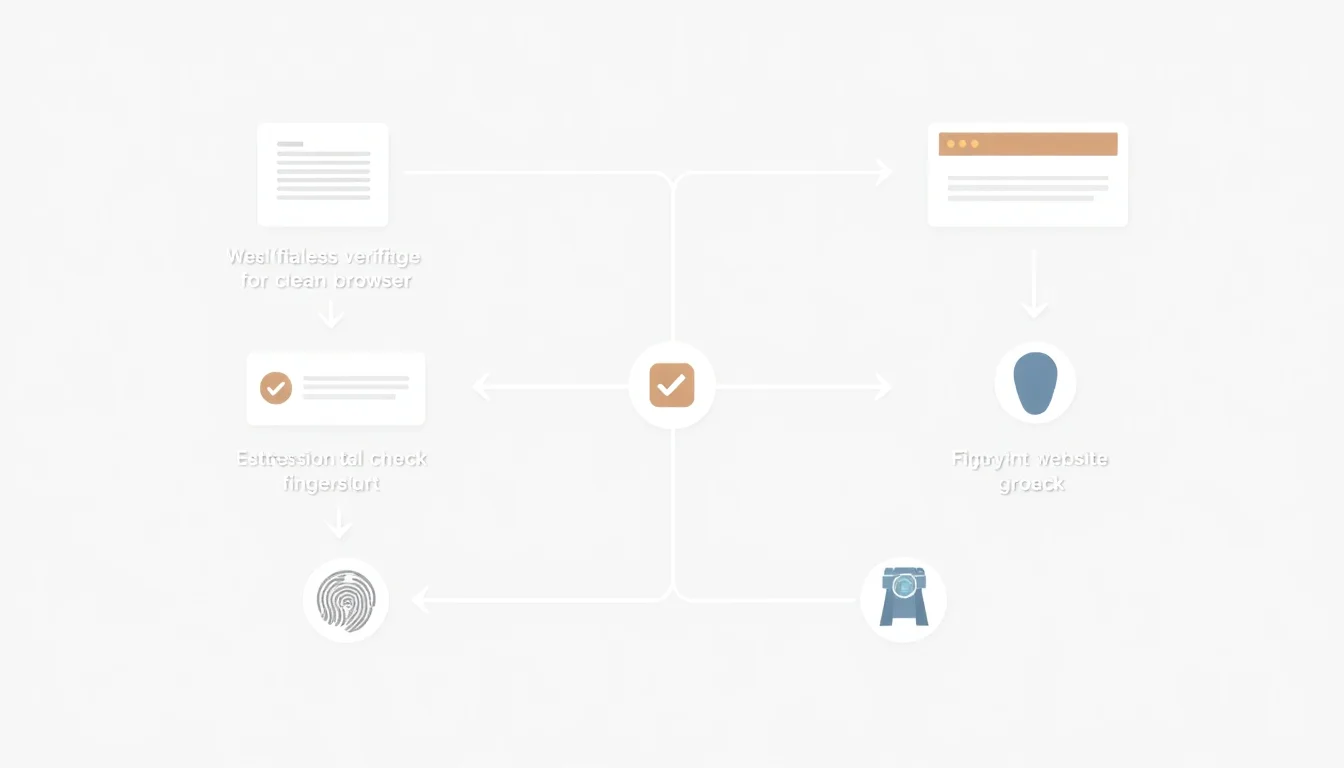
- Run the same target in a clean profile inside the failing browser. This isolates stale cookies and stored state faster than rotating the proxy.
- Disable non-essential extensions. Do this before changing network variables so you do not hide the real cause.
- Compare browser-level differences. Version, language, timezone, automation signals, and profile age can all matter.
- Only then compare the IP layer again. If the clean browser state still fails on the same IP, the proxy layer deserves more suspicion.
When the issue is probably not the browser anymore
If a clean profile still fails, extensions are off, and multiple browsers now fail with the same proxy path, the case is moving out of browser troubleshooting and into network diagnosis. At that point, it is more useful to compare IP reputation, route consistency, request pacing, and whether the environment passes once and then degrades on the next step.
That last pattern is worth comparing with why verification passes once and fails the next time, because the underlying issue is often not random. It usually means one layer stayed stable for the first pass but drifted before the follow-up request.
Conclusion
What to check first when Cloudflare verification fails only in one browser is not a mystery once you use the right split. Start by separating shared inputs from browser-only differences. Then test stored session state, extension interference, and fingerprint drift before you blame the proxy.
If one browser fails while another works, you already have a strong diagnostic advantage. Use it to isolate the failing layer instead of resetting the whole environment and losing the signal.